
Before clearing browser data, find out where the game keeps your progress. A login, a visible score and a browser sync setting do not by themselves prove that the save exists on a server. Read the game's help page and look for a supported export or backup option.
Do this before trying a cleanup step to fix a loading problem. A general instruction to clear site data can remove the very local state you wanted to preserve. If the save matters, pause the troubleshooting long enough to establish a recovery path.
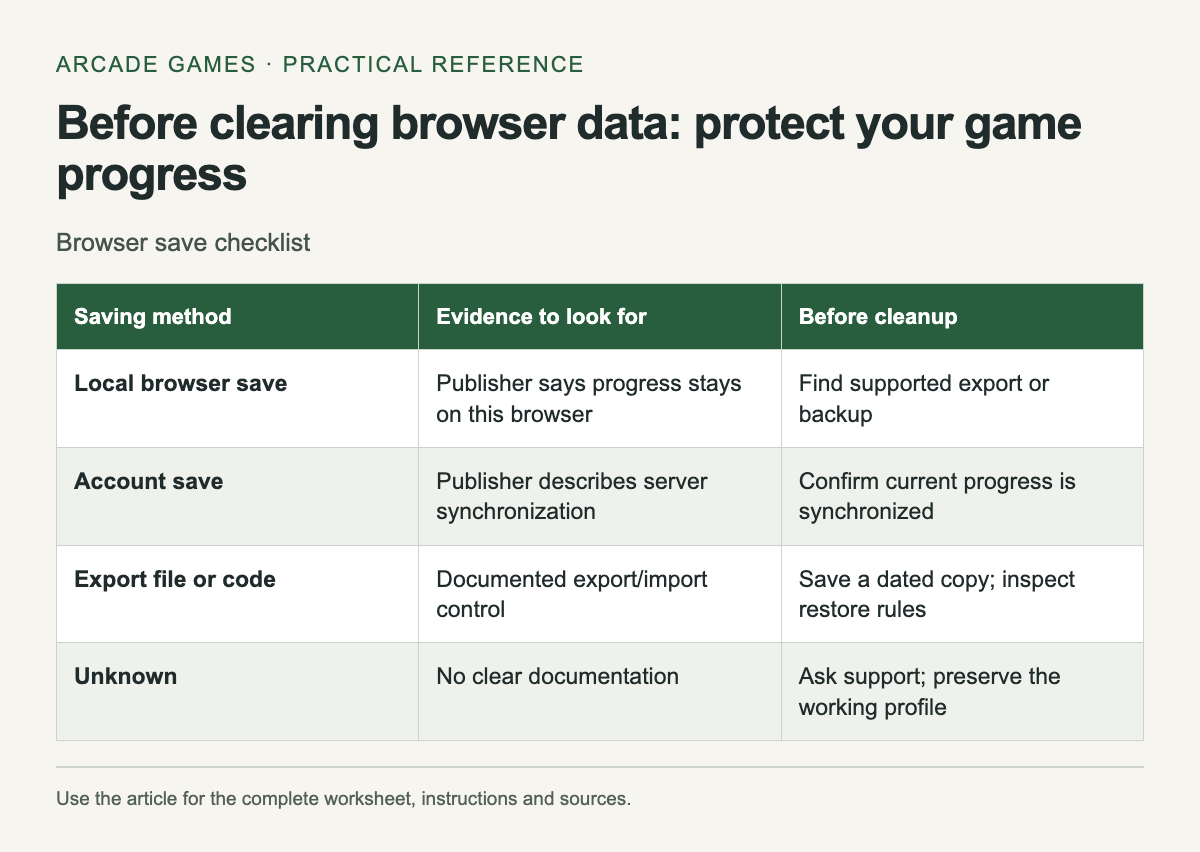
Identify the saving method
Scroll the table sideways on a narrow screen to see every column.
| Saving method | Evidence to look for | Before cleanup |
|---|---|---|
| Local browser save | Publisher says progress stays on this browser | Find supported export or backup |
| Account save | Publisher describes server synchronization | Confirm current progress is synchronized |
| Export file or code | Documented export/import control | Save a dated copy; inspect restore rules |
| Unknown | No clear documentation | Ask support; preserve the working profile |
Mark the method unknown when the publisher does not explain it. Do not assume that signing into a game account automatically uploads every local save. Check what the account actually synchronizes and whether the current progress has reached it.
Keep site data separate from cached files
Mozilla's Firefox guidance distinguishes cookies, site data and cached web content, and provides ways to clear them. Read the options carefully. A broad deletion action can affect more than the temporary files you intended to remove.The exact storage method belongs to the game. Browser games can use local storage mechanisms for progress, so use the publisher's instructions for that title rather than a universal cleanup recipe. A screenshot of a score documents the result but does not restore the underlying save.
Use an official export when available
If the game has an export function, follow its instructions and save the resulting file or code somewhere you can find it. Note the game version and date. Keep the export unchanged unless the publisher specifically documents how it can be edited.
Test import only in a supported way that will not overwrite the only working copy. Read whether importing replaces current progress. A backup you have never checked is still useful, but record that its restore behavior remains untested rather than calling it verified.
Check a move to another device
Open the publisher's account-sync instructions before switching. Confirm you are using the same game and account, then follow its documented synchronization steps. Similar titles on different portals may be separate versions with unrelated saves.
If the new device shows older progress, stop before playing further or forcing a sync. Read the conflict guidance and compare dates or progress labels where available. Choosing the wrong copy can make the situation harder to recover.
Protect the existing browser profile
Avoid deleting or resetting the profile that contains your only working progress. A private browsing session or another profile is not automatically a substitute for that state. Use an alternate profile only as a separate diagnostic environment, with the expectation that its data may differ.
If a site changes domain or the game moves to a new page, check whether the publisher provides migration instructions. Do not infer that a bookmark redirect also transfers the save. Keep the old address in your notes until the new version has the progress you expect.
Record the recovery path
Write down the game's exact URL, saving method and backup location. Keep account credentials out of a public worksheet. If support is needed, describe the visible progress and the action that preceded its loss without sharing passwords or recovery codes.
Once a reliable backup or account restore is confirmed, return to the specific troubleshooting step you intended. Clear only what that step requires, then reopen the game and check the result before making another change.
Older downloadable games use different saving paths; see The blog’s casual-game archive.


No comments:
Post a Comment