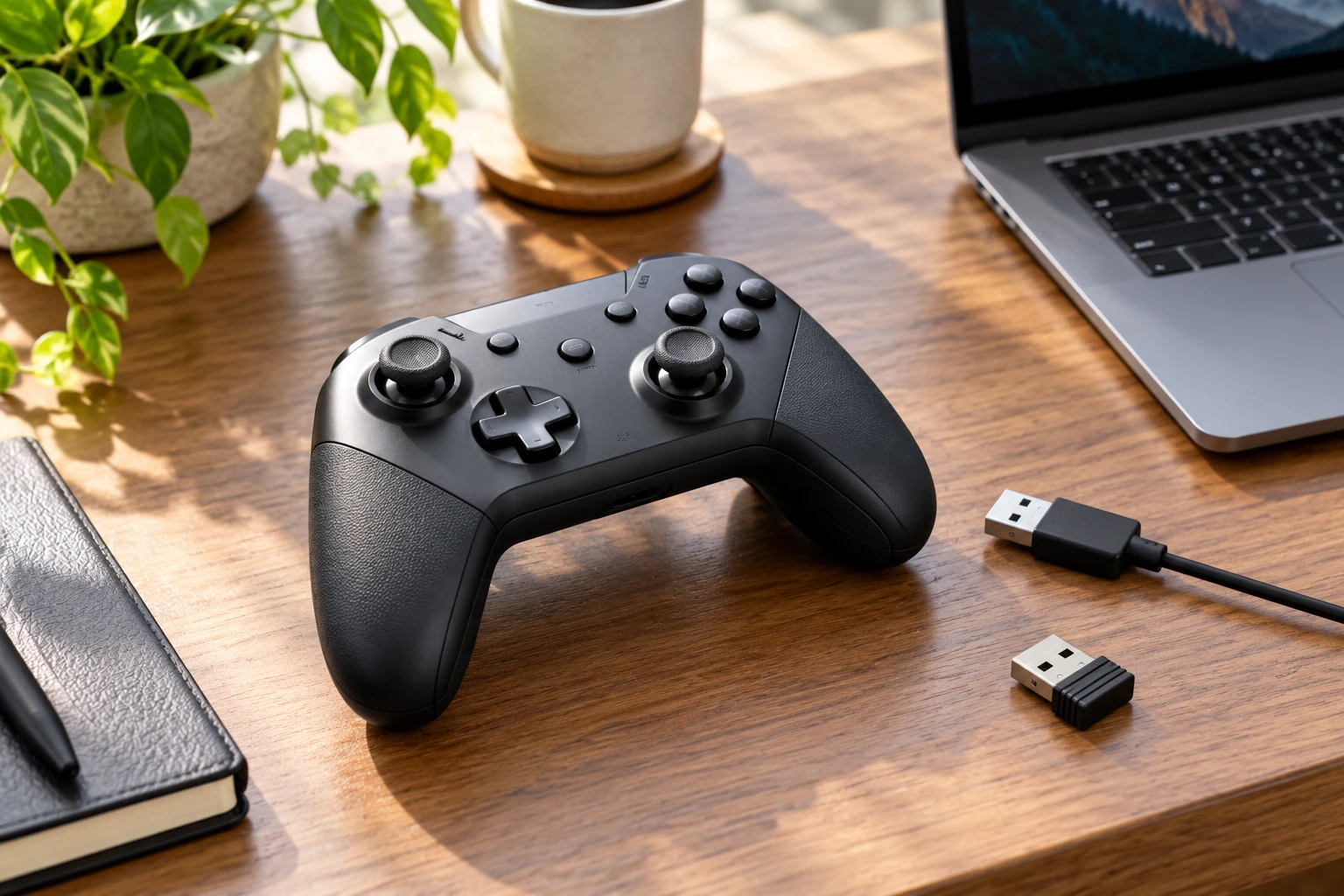
When a controller fails in one PC game, first find out where its input stops being recognized. The device connection, platform configuration and game bindings are separate checks. Changing all of them at once makes it harder to identify the cause or return to a working setup.
Start with a simple description: no buttons respond, one stick behaves incorrectly, or a single press moves a menu twice. Record the controller model, connection method and game. The exact symptom is more useful than a general note that the gamepad is broken.
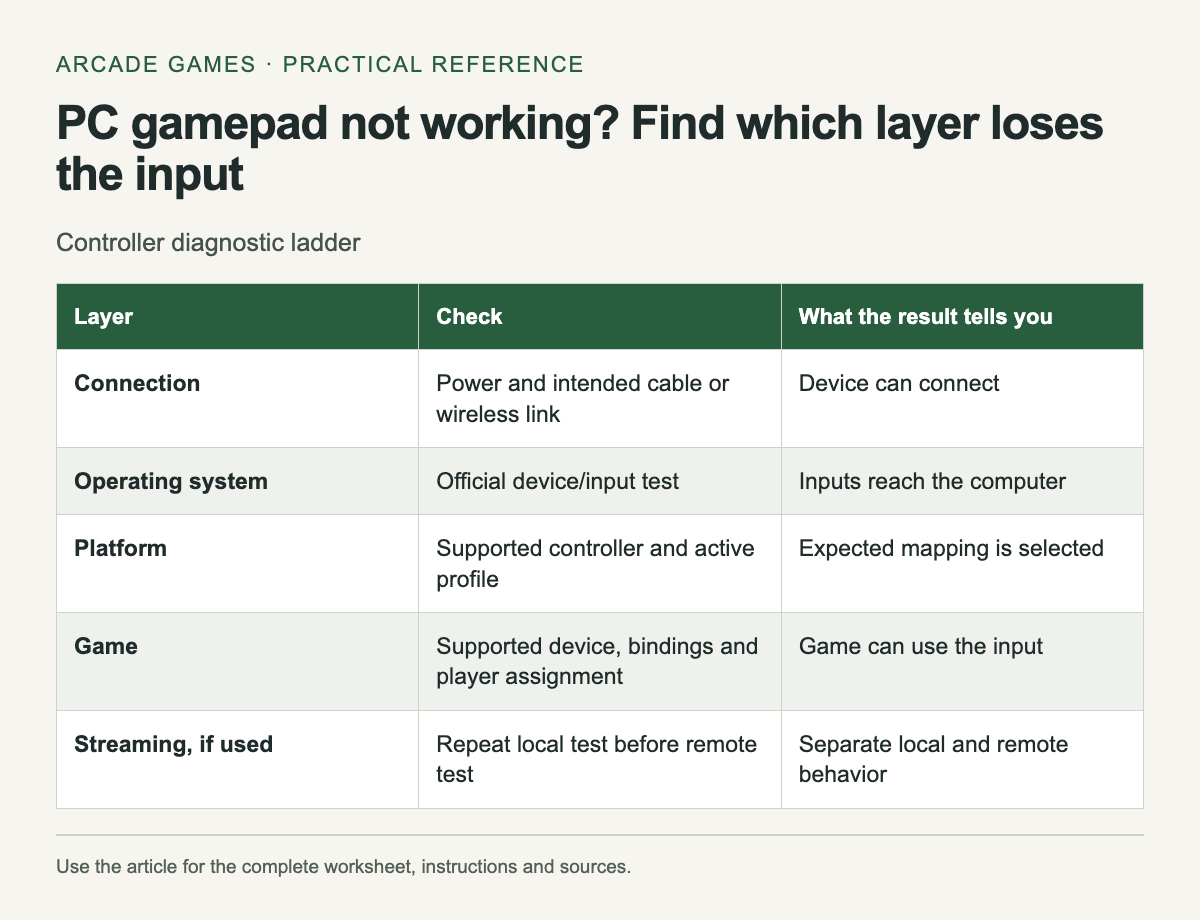
Follow the input through the setup
Scroll the table sideways on a narrow screen to see every column.
| Layer | Check | What the result tells you |
|---|---|---|
| Connection | Power and intended cable or wireless link | Device can connect |
| Operating system | Official device/input test | Inputs reach the computer |
| Platform | Supported controller and active profile | Expected mapping is selected |
| Game | Supported device, bindings and player assignment | Game can use the input |
| Streaming, if used | Repeat local test before remote test | Separate local and remote behavior |
Stop when a layer fails and investigate it before continuing. A controller that is absent from the operating system cannot be fixed by changing an in-game jump binding. A controller that works elsewhere may still need a game-specific configuration.
Check the physical connection
Confirm power or battery charge, then inspect the connection you intended to use. If you test a cable, use one known to support data as required by the device. A cable that charges a controller does not by itself establish that it carries the input connection you need.
Disconnect extra controllers during the test if doing so does not interrupt someone else's session. This makes player assignment easier to understand. Reconnect the intended devices one at a time and note when the symptom appears.
Use the manufacturer’s diagnostic path
Open the controller or platform's documented input test when available. Check buttons and stick movement separately. If the diagnostic does not show the expected input, follow official connection or firmware guidance for that exact model.
Avoid installing a collection of remapping tools to see whether one works. Several active mapping layers can complicate the result. If you already use one, record its profile and close or disable it only through its normal controls for a reversible test.
Inspect the game’s supported controls
Read the exact store page and game manual. Controller support can vary between gameplay and menus, and a familiar button icon does not prove that every device is supported. Check the game's own device requirements before interpreting a missing prompt.
For a streaming session, the host and client add another part to the path. Steam's Remote Play explanation describes sharing input with the host. Test the controller locally first so a network or streaming issue is not confused with a device issue.
Make one reversible change
If official guidance recommends a platform input setting, write down its original value before changing it. Restart the game when the instructions require it and repeat the same test. Keep the change only if it addresses the symptom without breaking another needed action.
For double input, inspect whether more than one active configuration sends commands for the same button. That is a possibility to investigate, not a diagnosis you can make from the symptom alone. The game itself may have a repeat rule or a binding conflict.
Prepare a useful support report
Include the game version, operating system, device model, connection and the earliest layer where input failed. Add the exact action and expected result. A short recording of the controls can help if it avoids showing account details or other private information.
When the controller works, keep the successful configuration note. Reapply only those settings after a reset instead of repeating every experiment. The point of the checklist is to narrow the fault enough that the next change has a clear reason.
When revisiting an old arcade title, begin with its documented controls; the archive includes Chicken Invaders 3 archive entry.


No comments:
Post a Comment