
Divide 1,000 by frames per second to find the duration of an evenly spaced frame in milliseconds. At 60 FPS, that interval is about 16.67 ms. At 120 FPS, it is about 8.33 ms. This arithmetic helps explain the numbers shown by a performance counter.
It does not measure the delay between pressing a button and seeing a response. The response passes through other stages, and a frame-rate reading alone cannot tell you the total. Keep the calculator's result labelled as frame duration so it does not become an unsupported latency claim.
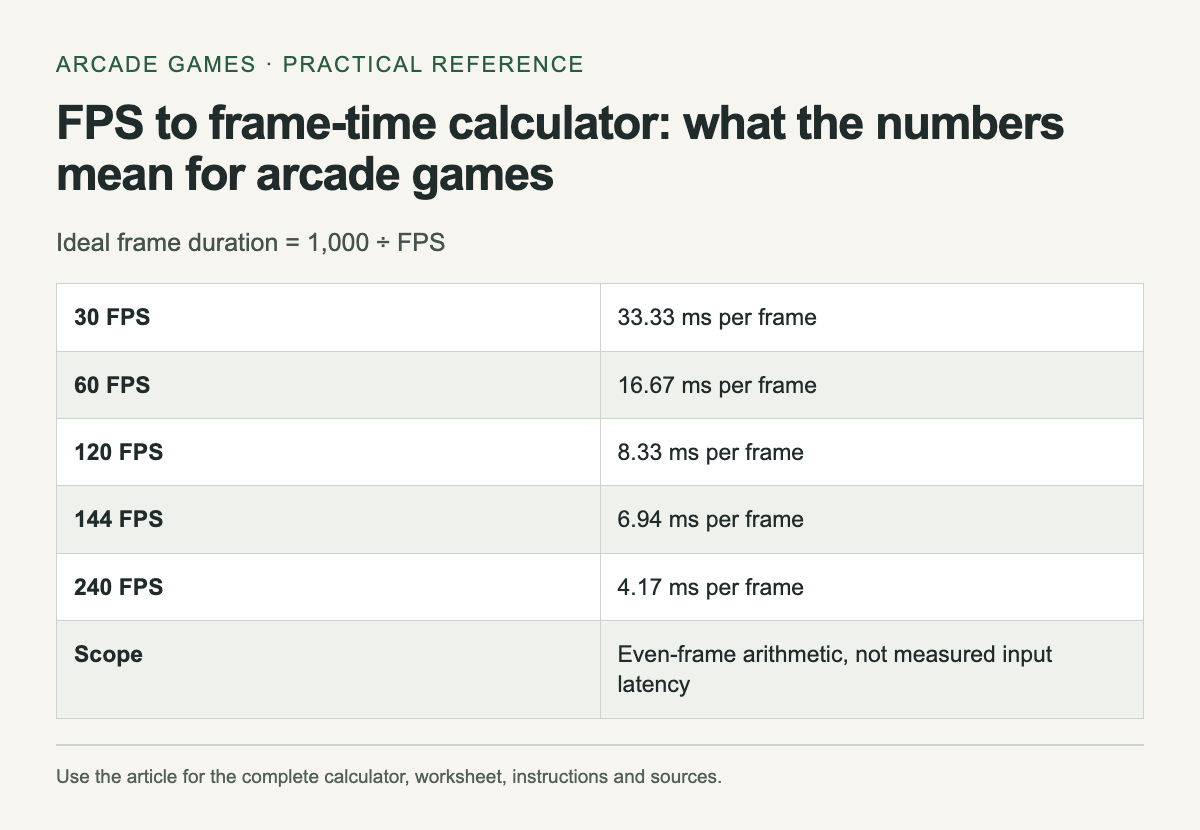
FPS to milliseconds: common targets
| FPS | Milliseconds per frame |
|---|---|
| 30 | 33.333 |
| 60 | 16.667 |
| 90 | 11.111 |
| 120 | 8.333 |
| 144 | 6.944 |
| 165 | 6.061 |
| 240 | 4.167 |
Why an average can hide a stutter
Consider a made-up sequence of ten frames. Nine take 10 ms each and one takes 50 ms. Together they take 140 ms, giving 10 ÷ 0.14 ≈ 71.43 FPS across the sequence. Yet one frame occupies five times as long as its neighbours. Converting the average back to 14 ms does not reveal that 50 ms spike.
I would compare the frame-time graph from the same playable scene before changing several graphics settings. Look for repeated spikes, then change one setting and repeat the scene. A single average is useful for a broad comparison, but it cannot show the timing of each frame. Intel’s benchmark guide also distinguishes average FPS from frame pacing.
Reading very low or missing values
This calculator accepts 1–1,000 FPS. Zero cannot be converted with 1,000 ÷ FPS; it would require division by zero. A blank or invalid input must be corrected before calculating. A valid number describes an ideal interval, not a measurement of your monitor or your button-to-screen delay.
Convert a frame rate
Convert frame rate to frame duration
Frame duration in milliseconds = 1,000 ÷ frames per second. This is an ideal even-frame interval, not measured input latency.
The calculation assumes frames arrive evenly. A game can report a reasonable average while delivering some frames much later than others. If you are investigating stutter, a frame-time graph contains information that an average FPS number leaves out.
Compare changes in milliseconds
Moving from 30 to 60 FPS changes the ideal interval from about 33.33 ms to 16.67 ms, a reduction of about 16.67 ms. Moving from 60 to 90 FPS changes it from about 16.67 ms to 11.11 ms, a reduction of about 5.56 ms. Both changes add thirty frames per second, but the time difference is not the same.
That does not mean one target is universally correct. A display, game engine and device impose their own limits. Use the numbers to understand a comparison, then choose settings based on the game and hardware you actually have.
Keep the display rate separate
A monitor's refresh rate describes how often it can refresh, while a game's frame rate describes how often it produces frames. Matching numbers on two menus does not prove smooth delivery or low input delay. Read the game's and display's documentation when choosing synchronization settings.
Avoid copying a universal "disable everything" preset. Tearing, pacing and responsiveness involve tradeoffs, and a setting that suits one system can behave differently on another. Record the original value and change one option at a time.
Use a repeatable scene
For a practical comparison, return to the same scene or challenge with the same settings and input device. Note the frame-rate range, visible stutters and the exact change you made. Do not compare a quiet menu with a busy level and attribute the difference to a graphics option.
If a game has a built-in benchmark, read what it measures. A benchmark result can help compare configurations, but it is still a sample of a particular workload. Do not present it as a guarantee that every level performs the same way.
Write a result that another person can understand
Record game version, device, resolution and the settings relevant to the change. A useful note says that a particular scene became steadier on your setup. It does not claim that all players should expect the same increase.
For an arcade practice session, prioritize a setup you can reproduce. Changing display mode or performance settings between record attempts can make the comparison harder to interpret. Keep experimental runs in a separate part of your score log, then return to the configuration you chose for ordinary play.
The calculator can convert any positive rate in its accepted range. Copy the output into your notes if needed; it is neither stored nor sent from this page.
The archive also includes the platform game SuperCow archive entry.


No comments:
Post a Comment