Before inviting people over for a PC game, check that it supports the number of local players you plan to host. An online multiplayer label does not establish couch co-op. Open the exact store page and look for the local or shared-screen mode you intend to use.
Then count input devices. Two connected keyboards do not automatically become two independent players inside a game. The game must support the arrangement, and its joining screen or control documentation should explain how each player enters.
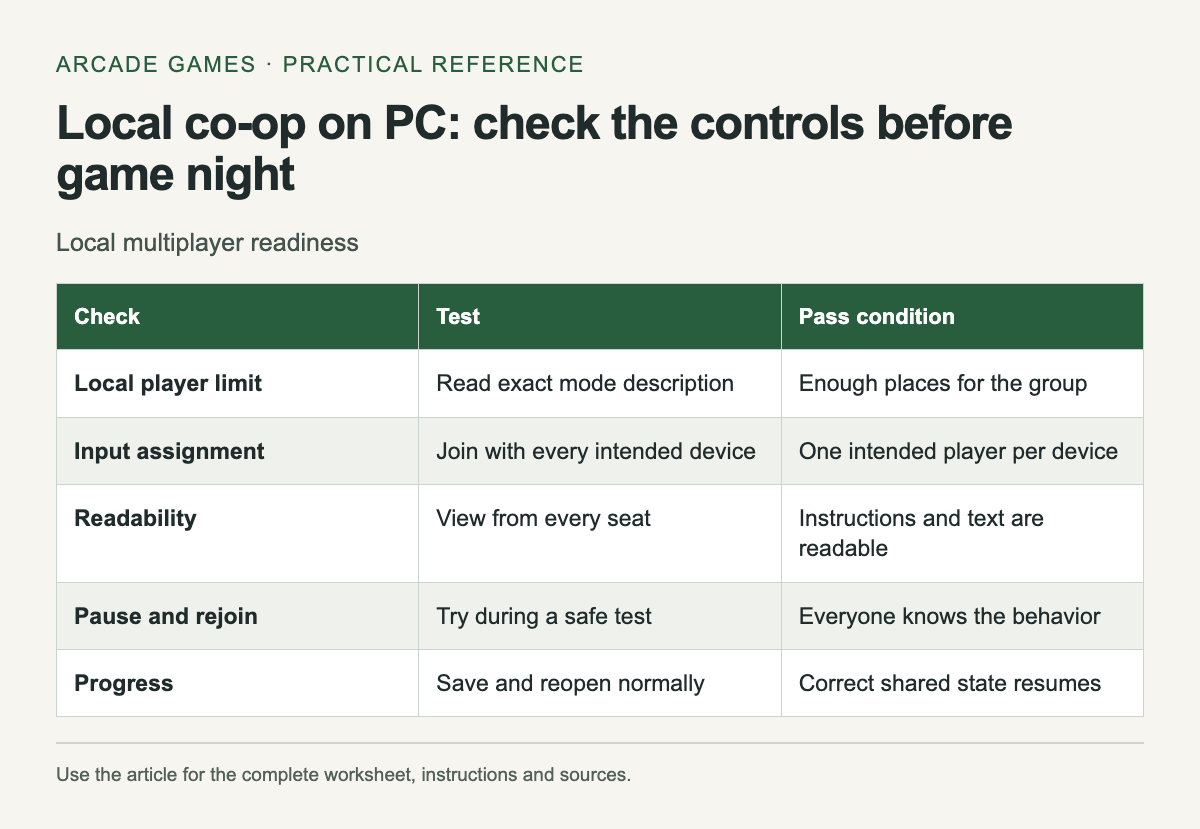
Run this setup check early
Scroll the table sideways on a narrow screen to see every column.
| Check | Test | Pass condition |
|---|---|---|
| Local player limit | Read exact mode description | Enough places for the group |
| Input assignment | Join with every intended device | One intended player per device |
| Readability | View from every seat | Instructions and text are readable |
| Pause and rejoin | Try during a safe test | Everyone knows the behavior |
| Progress | Save and reopen normally | Correct shared state resumes |
Write down the working arrangement after the test. If the game needs a keyboard for one player and a controller for another, make that explicit. A simple note prevents a last-minute reshuffle when someone arrives with a different device.
Test joining from a fresh launch
Close the game normally, connect the intended devices and launch it again. Have each person join through the game's own instructions. Check that each device controls the correct character, including in menus and during a normal level.
If two devices control the same character, stop and inspect assignments before changing unrelated settings. A controller may be mapped to keyboard input, or the game may require an explicit join action. Use its documentation to distinguish those possibilities rather than assuming the hardware is broken.
Check the screen from every seat
Small text and shared-camera movement can become problems away from the desk. Test the menu, instructions and a busy moment from the farthest seat. If the game offers text size or display-area controls, adjust them before the session begins.
Agree on what happens when one player needs a break. Test whether the game pauses for everyone, keeps running or allows someone to leave and rejoin. Do not learn the answer for the first time during a difficult section.
Keep remote participation separate
If one friend joins over the internet, check whether the game supports native online play or an appropriate streaming feature. Steam Remote Play Together can share supported local multiplayer games from the host's running copy. It still depends on the game's supported mode and controls.
Test that arrangement before the main session. The remote player's connection and input path differ from those of someone sitting at the PC. A successful local test alone cannot establish the quality of the remote experience.
Prepare a fallback that fits the group
A second game with a confirmed working setup can save the evening if the first has an unexpected issue. Choose it before people arrive and launch it once. Downloading a replacement while everyone waits can consume the time intended for play.
For a shared keyboard, test the actual combinations players will press together. A menu that accepts each key individually does not prove it accepts them simultaneously. If a combination fails, try a supported remap or a different controller arrangement and retest the same action.
At the end, quit normally and confirm whose progress was saved. Keep the host account and any shared campaign choice clear so the next session starts from the intended state. Local co-op works best when the practical setup is already settled before the first level begins.
For the blog’s earlier casual-game coverage, visit New and Freshy games archive.


No comments:
Post a Comment